
Signing a PDF document using the DigiSign Client software
To sign PDF documents electronically using the DigiSign card reader software you need to have the software version 4.1.0 or a later version. In addition, you need the signature PIN (PIN2) of your certificate card.
These instructions can be applied to all operating systems that use the yellow smart card icon of DigiSign Client in the task bar: Windows, Mac and the most common Linux desktop distributions.
- First, ensure that the certificate card is in the card reader.
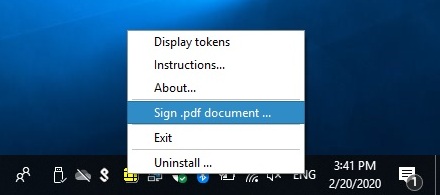
- Right-click the DigiSign Client icon in the task bar with your mouse. The icon is yellow when the card is in the reader.
- From the options displayed, select "Sign .pdf document”.
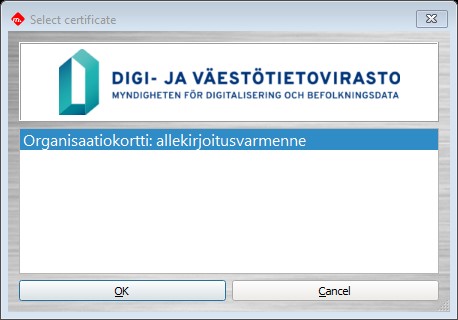
- The programme automatically suggests a signature certificate. Click OK.
- The programme opens a window in which you can browse and select the PDF document you need to sign from the files on your computer. Select the desired document and click ”Open”. The selected document will not open yet, however.
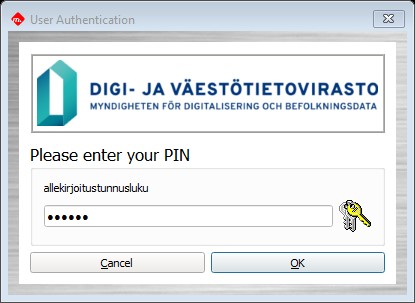
- Instead, the User Authentication window opens. Enter the signature PIN to the field reserved for it and click OK.
- The signature has been completed. After you have entered the signature PIN, the signed document opens using the default programme for PDF files (e.g. Adobe). The document is saved on the computer using its original name, but the programme adds the word “-signed” at the end of the name.
Please note that the signature will not be visible on the actual document but is saved in the metadata of the document. This does not affect the validityof the signature.


